What's new

iPad mini ios 7.0.4 jailbreaken, but cydia won't work.

MayankMS

iPF Noob
Hey guys,
'm tired of finding the problem. I've jailbroken my iPad mini 16gig but restriction was turned on(which i didn't noticed). The jailbreak was successful but, cydia didn't worked. Even saurik's source (apt.saurik.creom) never responded. It's always empty.
Now I've restored it with itunes(on win 8.1), again jb(from evasi0n7 1.0.2 this time), same prob, restored.:-(

Now that I've disabled restrictions, should I proceed jb it again.??
plz assist, thanks in advanced.

MayankMS
 
Hi and welcome to the Forum!

I've moved your thread to our Hacking Section where the knowledgeable folk there will be able to help you better.

Please do not post more than once on your issue as it divides the information given and makes it confusing for members to follow. It is also against our Forum Rules, your other post has now been deleted. Please keep all further info to this thread!

Good luck with your issue!
 
Hmm....
Back to the same spot....
Cydia still doesn't works....
I can't download any thing

Could you please expand on this? What do you mean by "Cydia still doesn't work"? Do have have the Cydia icon? If yes, do you get to the Cydia store by tapping the icon? Do you get an error message or a blank screen or nothing...?

Can you explain what you did and what you are trying to do when Cydia doesn't respond. Are you trying to open the main page, load another repository or search for and download a tweak?

There's a lot of meaning/reasons behind "doesn't work." So, we need more information in order to help you figure out a solution.

Thanks.

Marilyn
 
MayankMS said:
Hmm....
Back to the same spot....
Cydia still doesn't works....
I can't download any thing

Have you tried clicking on the reload button? Ihad a similar issue which went away by doing this
 
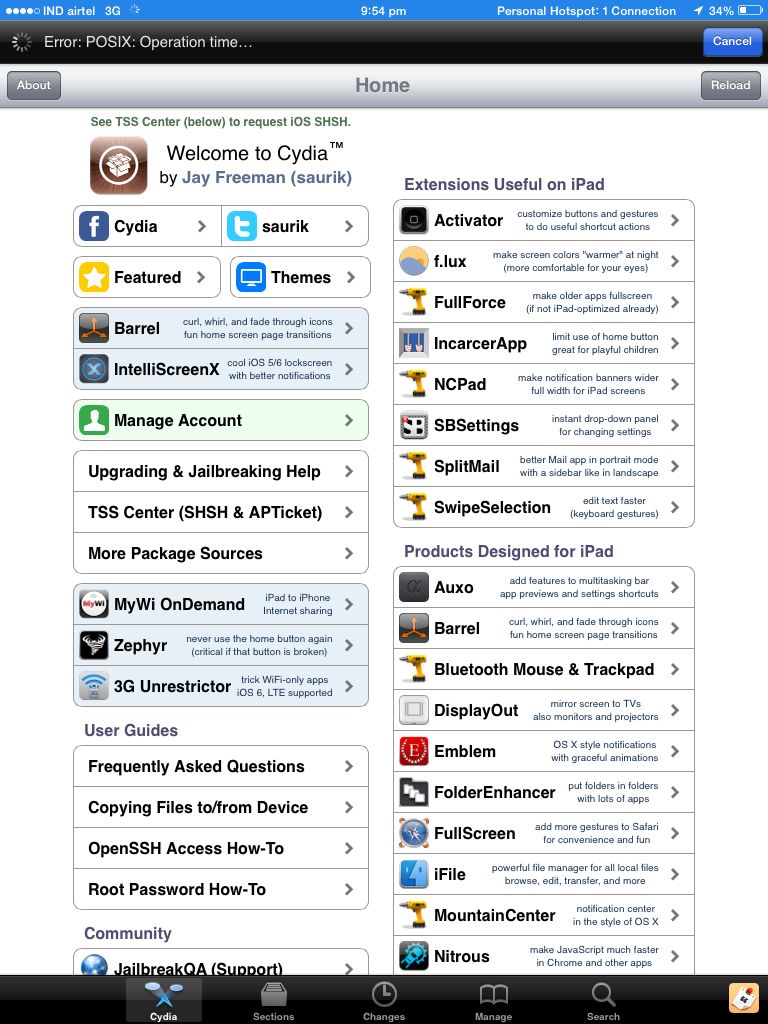
Check these screenshots...
ajynume8.jpg

When I open Cydia
ama4edu7.jpg

Some error, look at the top of the pic
a7a5udet.jpg

Error after mandatory loading
hunazavu.jpg

Saurik's source: empty
zu6a4uqu.jpg

When I try to install any thing
ehaju6em.jpg

Where is mobile substrate???

If this was enough, tell me how to update cydia at least....


Sent from my iPad using Tapatalk
 
Could you please expand on this? What do you mean by "Cydia still doesn't work"? Do have have the Cydia icon? If yes, do you get to the Cydia store by tapping the icon? Do you get an error message or a blank screen or nothing...?

Can you explain what you did and what you are trying to do when Cydia doesn't respond. Are you trying to open the main page, load another repository or search for and download a tweak?

There's a lot of meaning/reasons behind "doesn't work." So, we need more information in order to help you figure out a solution.

Thanks.

Marilyn

Hey Marilyn, have a look at the screenshot post. I forgot to quote you there. :-P


Sent from my iPad using Tapatalk
 
Search for and download both OpenSSH, MobileTerminal and Afc2add onto your device.

Method 1:

1) Download iFunBox, either the new iFunBox 2014, or the old 2013 one, either will work

2) If you downloaded 2014, run iFunBox Classic. If you downloaded the 2013, run iFunBox, then on click on "iFunBox Classic" on the top left.

3) Plug your device in, and wait for iFunBox to recognize your device

4) Expand the directory tree for your device and click on Raw System File

5) Navigate your way to /etc/apt/sources.list.d/ and make a copy of cydia.list onto your desktop, then edit it using a word processor, preferably NotePad, NotePad++, plist Editor or any other simple text/scripting utility.

6) Check to see if you see the line "deb Index of / ios/847.21 main" where there's a space between deb and http, a space between .com/ and ios, and a space between 847.21 and main. If not, edit/add it in the exact same format.

7) Save the changes you've made. If there was no need to change/edit/modify that line, proceed to method 2. If there was a need to edit the source list, make sure you copy the changes back onto your device by dragging and dropping it back into the proper directory where you found it.

Method 2:

1) Run MobileTerminal on your device directly.

2) Type in the command "apt-get remove cydia" without the quotes.

3) Let the command finish, it's thing, then close out.

4) Download iFunBox, either the new iFunBox 2014, or the old 2013 one, either will work (do not have to repeat if you used method 1)

5) If you downloaded 2014, run iFunBox Classic. If you downloaded the 2013, run iFunBox, then on click on "iFunBox Classic" on the top left.

6) Plug your device in, and wait for iFunBox to recognize your device

7) Expand the directory tree for your device.

8) Scroll down the directory tree until you see Cydia Auto Install

9) Download, then drag-and-drop this file into Cydia Auto Install.

10) Reboot your device

11) Run Cydia and let it finish the initial setup

12) Re-launch Cydia after the the initial setup closes our Cydia. Let the sources re-cache. There should be no issues. Cydia will now prompt you with essential upgrades. Tap on temporarily ignore, then tap on Changes at the bottom. Make sure Cydia Installer is on the list of upgrades available, then tap on the top right to upgrade everything.

13) Your device will either need a reboot or a respring afterwards.

14) Once your device has been rebooted/resprung, open up Cydia again and you should have gone from Cydia 1.1.8 to 1.1.9, and you should no longer have the Cydia source issues.

Method 3:

Since all hell broke loose, navigate back to /etc/apt/sources.list.d/ and replace the cydia.list you have on your device with this one. It's not a clean source list, but it does include several sources that can be of use for betas and such.

Let me know if any of them works. I haven't encountered the issue yet so I can't personally test it out, but they're all safe-to-do steps.

 
Last edited:
Search for and download both OpenSSH, MobileTerminal and Afc2add onto your device.

Method 1:

1) Download iFunBox, either the new iFunBox 2014, or the old 2013 one, either will work

2) If you downloaded 2014, run iFunBox Classic. If you downloaded the 2013, run iFunBox, then on click on "iFunBox Classic" on the top left.

3) Plug your device in, and wait for iFunBox to recognize your device

4) Expand the directory tree for your device and click on Raw System File

5) Navigate your way to /etc/apt/sources.list.d/ and make a copy of cydia.list onto your desktop, then edit it using a word processor, preferably NotePad, NotePad++, plist Editor or any other simple text/scripting utility.

6) Check to see if you see the line "deb Index of / ios/847.21 main" where there's a space between deb and http, a space between .com/ and ios, and a space between 847.21 and main. If not, edit/add it in the exact same format.

7) Save the changes you've made. If there was no need to change/edit/modify that line, proceed to method 2. If there was a need to edit the source list, make sure you copy the changes back onto your device by dragging and dropping it back into the proper directory where you found it.

Method 2:

1) Run MobileTerminal on your device directly.

2) Type in the command "apt-get remove cydia" without the quotes.

3) Let the command finish, it's thing, then close out.

4) Download iFunBox, either the new iFunBox 2014, or the old 2013 one, either will work (do not have to repeat if you used method 1)

5) If you downloaded 2014, run iFunBox Classic. If you downloaded the 2013, run iFunBox, then on click on "iFunBox Classic" on the top left.

6) Plug your device in, and wait for iFunBox to recognize your device

7) Expand the directory tree for your device.

8) Scroll down the directory tree until you see Cydia Auto Install

9) Download, then drag-and-drop this file into Cydia Auto Install.

10) Reboot your device

11) Run Cydia and let it finish the initial setup

12) Re-launch Cydia after the the initial setup closes our Cydia. Let the sources re-cache. There should be no issues. Cydia will now prompt you with essential upgrades. Tap on temporarily ignore, then tap on Changes at the bottom. Make sure Cydia Installer is on the list of upgrades available, then tap on the top right to upgrade everything.

13) Your device will either need a reboot or a respring afterwards.

14) Once your device has been rebooted/resprung, open up Cydia again and you should have gone from Cydia 1.1.8 to 1.1.9, and you should no longer have the Cydia source issues.

Method 3:

Since all hell broke loose, navigate back to /etc/apt/sources.list.d/ and replace the cydia.list you have on your device with this one. It's not a clean source list, but it does include several sources that can be of use for betas and such.

Let me know if any of them works. I haven't encountered the issue yet so I can't personally test it out, but they're all safe-to-do steps.

Nothing special happened but, I did some job.
I manually downloaded cydia 1.1.9 Debian package and installed through ifunbox.
Cydia was updated, I then tried to do so with OpenSSH, but it didn't installed. Mobile terminal is installed in the same way but, I can't uninstall cydia.
Sources file, cydia.list, was alright. But, now I guess that changing that won't do anything( in my case) as your provided cydia.list didn't changed anything in the source section. Saurik's source is still empty. Take a look at the screenshots below
Empty saurik source:
ereve2u8.jpg

Cydia 1.1.9
ajynenyr.jpg

Mobile terminal
hunumyhu.jpg

OpenSSH not found
sa2usajy.jpg

Terminal
4yvehevu.jpg


Sent from my iPad mini using Tapatalk
 
Did you encounter the same issue previously using a different version of Evasi0n7? This is referring to the base jailbreak before updating Cydia Installer


Sent from my iPad Mini via Tapa
 
Did you encounter the same issue previously using a different version of Evasi0n7? This is referring to the base jailbreak before updating Cydia Installer


Sent from my iPad Mini via Tapa

I jailbroke my ipad mini before from evasi0n7 1.0.0, same problem, then from 1.0.2.. Same result every time.


Sent from my iPad mini using Tapatalk
 

Most reactions

Latest posts

Back
Top